Android Development Setup
Complete guide to setting up Android development environment for React Native
Android Development Setup
This guide covers Android development setup for macOS, Windows, and Linux.
Official Reference: This guide follows the official Expo environment setup for Development Builds.
Prerequisites
- Node.js: Version 20+ installed (LTS recommended)
- Package Manager: Yarn (recommended) or npm
- Disk Space: ~10GB free disk space for Android Studio and SDKs
macOS Setup
Install Java Development Kit (JDK 17)
React Native currently recommends JDK 17. We use Homebrew to install it.
brew install --cask zulu@17Configure JAVA_HOME
Add the following to your ~/.zshrc (or ~/.bash_profile):
export JAVA_HOME=/Library/Java/JavaVirtualMachines/zulu-17.jdk/Contents/HomeReload your shell configuration:
source ~/.zshrcVerify installation:
javac -version
# Should output javac 17.x.x
Install Android Studio
- Download and install Android Studio.
- Start Android Studio and follow the Setup Wizard.
- Select Standard installation type when prompted.
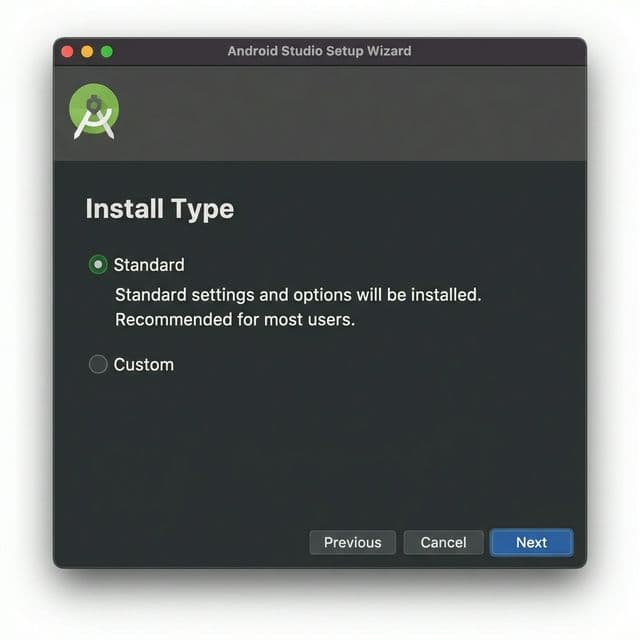
- Ensure the following components are selected and installed:
Android SDKAndroid SDK PlatformAndroid Virtual Device
Install Android SDK & Tools
-
Open Android Studio.
-
Go to More Actions → SDK Manager (or Settings → Languages & Frameworks → Android SDK).
-
In the SDK Platforms tab:
- Check Show Package Details (bottom right).
- Expand Android 15 (VanillaIceCream) (or the latest stable version).
- Check
Android SDK Platform 35. - Check
Google APIs ARM 64 v8a System Image(for Apple Silicon) orIntel x86 Atom_64 System Image(for Intel Macs).
-
In the SDK Tools tab:
- Check Show Package Details.
- Expand Android SDK Build-Tools.
- Ensure
35.0.0(or latest) is checked.
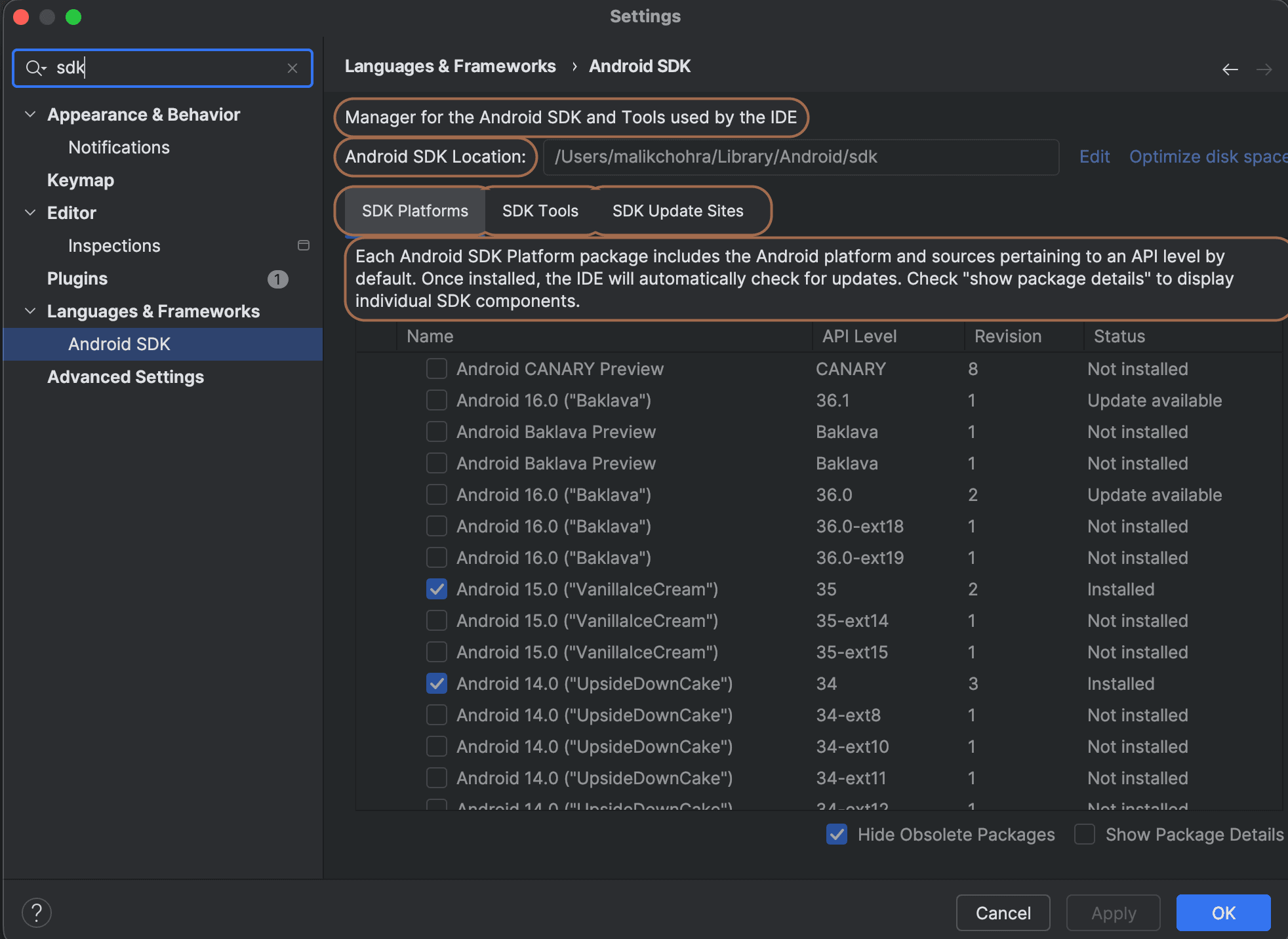
- Click Apply to download and install selected components.
Configure Environment Variables
Add the following lines to your ~/.zshrc or ~/.bash_profile to help React Native find your Android SDK:
export ANDROID_HOME=$HOME/Library/Android/sdk
export PATH=$PATH:$ANDROID_HOME/emulator
export PATH=$PATH:$ANDROID_HOME/platform-tools
Reload your shell:
source ~/.zshrcVerify variables:
echo $ANDROID_HOME
# Output should be: /Users/your_username/Library/Android/sdk
Windows Setup
Install Java Development Kit (JDK 17)
We recommend using Chocolatey to install JDK 17. Open PowerShell as Administrator and run:
choco install -y microsoft-openjdk17Install Android Studio
- Download and install Android Studio.
- During installation, select Standard and ensure these are checked:
Android SDKAndroid SDK PlatformAndroid Virtual Device
Install Android SDK & Tools
- Open Android Studio.
- Go to More Actions → SDK Manager.
- In the SDK Platforms tab:
- Check Show Package Details.
- Expand Android 15 (VanillaIceCream).
- Check
Android SDK Platform 35. - Check
Google APIs Intel x86 Atom_64 System Image.
- In the SDK Tools tab:
- Check Show Package Details.
- Expand Android SDK Build-Tools.
- Ensure
35.0.0is checked.
- Click Apply to install.
Configure Environment Variables
- Open Windows Settings → System → About → Advanced system settings.
- Click Environment Variables.
- Under User variables, click New:
- Variable name:
ANDROID_HOME - Variable value:
%LOCALAPPDATA%\Android\Sdk
- Variable name:
- Find the Path variable in User variables, select it, and click Edit.
- Click New and add:
Plaintext
%LOCALAPPDATA%\Android\Sdk\platform-tools - Click OK to save all changes.
Linux Setup
Install Java Development Kit (JDK 17)
Ubuntu/Debian:
sudo apt-get update
sudo apt-get install openjdk-17-jdk
Verify:
java -versionInstall Android Studio
- Download Android Studio.
- Extract the
.tar.gzfile (e.g., to/usr/local/or/opt/). - Run
android-studio/bin/studio.sh. - Follow the setup wizard and select Standard install.
Configure Environment Variables
Add to ~/.bashrc or ~/.zshrc:
export ANDROID_HOME=$HOME/Android/Sdk
export PATH=$PATH:$ANDROID_HOME/emulator
export PATH=$PATH:$ANDROID_HOME/platform-tools
Reload shell:
source ~/.bashrc