iOS Development Setup
Complete guide to setting up iOS development environment for React Native (macOS only)
iOS Development Setup
macOS Required: iOS development requires a Mac computer. Windows and Linux users can use EAS Build to build iOS apps in the cloud without local setup.
Official Reference: This guide follows the official Expo environment setup for Development Builds.
Prerequisites
- macOS: Latest version recommended (macOS Sonoma or later)
- Disk Space: ~20GB free disk space (Xcode is large)
- Apple ID: Required to download Xcode
Step 1: Install Node.js & Watchman
We recommend installing Node.js and Watchman using Homebrew.
Install Homebrew
If you haven't installed Homebrew yet, open your Terminal and run:
/bin/bash -c "$(curl -fsSL https://raw.githubusercontent.com/Homebrew/install/HEAD/install.sh)"Verify installation:
node -v
watchman -v
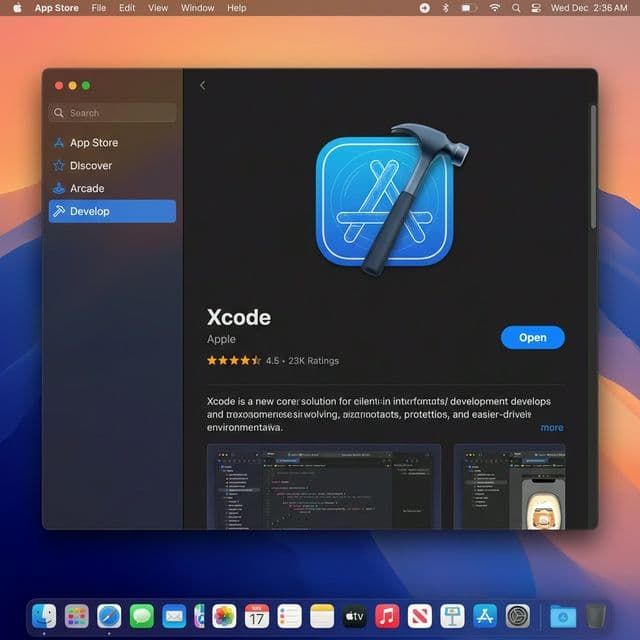
Step 2: Install Xcode
Xcode is the integrated development environment (IDE) for macOS, needed to compile the iOS app.
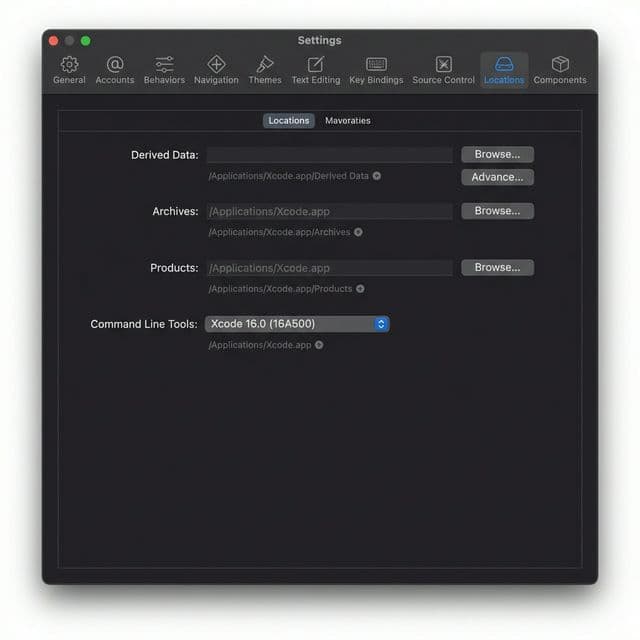
Install Command Line Tools
- Open Xcode.
- From the top menu, select Xcode → Settings... (
Cmd + ,). - Click the Locations tab.
- Ensure the Command Line Tools dropdown has the latest version selected.
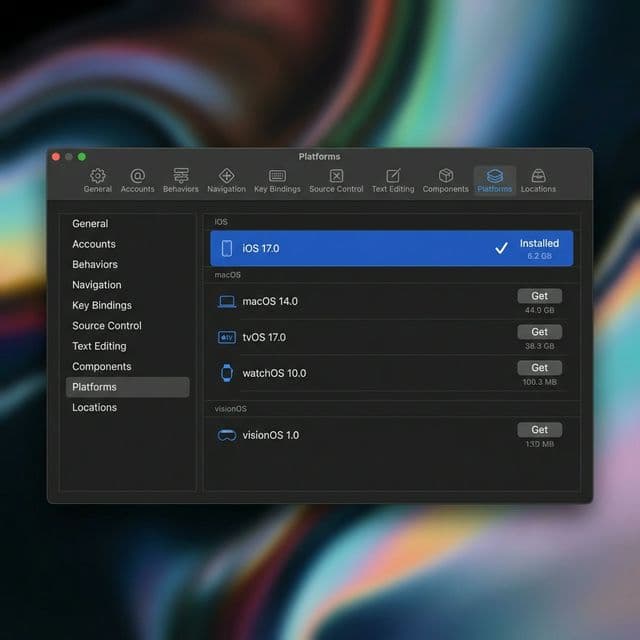
Step 3: Install iOS Simulator
To run the app on your Mac, you need to install the iOS Simulator.
Add Simulator
- In Xcode Settings (
Cmd + ,), go to the Platforms tab. - Click the + (plus) icon.
- Select iOS and click Download.
Step 4: Install CocoaPods
CocoaPods manages the native library dependencies for your iOS project.
sudo gem install cocoapodsVerify installation:
pod --version