Firebase Integration
Configure Firebase native services, Crashlytics, messaging, and explicit user properties in your Expo app.
Firebase Integration for Expo
Firebase is already installed and fully integrated into the boilerplate. This guide shows you how to create your own Firebase project and connect it to the app.
Firebase requires native code and will not work with Expo Go. You'll need a development build.
What's Included
- Crashlytics: Real-time crash reporting
- Messaging: Push notifications (FCM)
- Remote Config: Change app behavior without deploying
- Explicit analytics controls: Firebase collection settings and user properties when you call them directly
Ordinary product events use Wire when it is configured. Firebase Analytics is not the default event transport and is not a fallback when Wire is absent.
Configure it the easy way (AI-assisted)
If you're using Claude Code, ask it to follow this repository's identity and release-preflight rules while you supply your Firebase config files and verify native services:
"Configure Firebase native services for my project."
Pair it with the Firebase MCP server only for Firebase data that your app explicitly sends. Use Wire for ordinary lifecycle, screen, onboarding, purchase-funnel, and activation-event verification. The reviewed candidates do not bundle a configure-analytics skill. See Claude Skills for the actual inventory.
The manual steps below remain the source of truth for this setup.
Step 1: Create a Firebase Project
Go to Firebase Console
- Navigate to console.firebase.google.com
- Sign in with your Google account
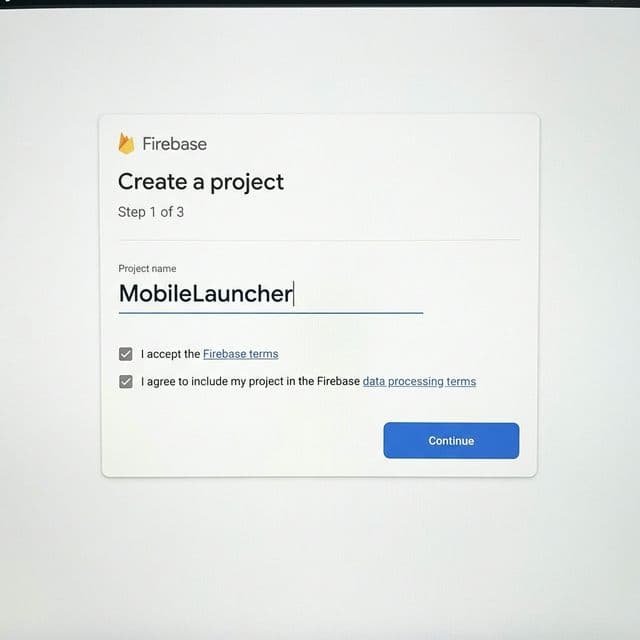
- Click Add project (or Create a project)
Tip: Bookmark console.firebase.google.com/project/YOUR_PROJECT_ID/settings/general for quick access to your project settings.
Configure Your Project
- Enter your Project name (e.g., "My App")
- Firebase auto-generates a unique Project ID, you can edit it now (cannot change later)
- Click Continue
- Choose whether to enable Google Analytics for explicit Firebase operations in your product
- Select or create a Google Analytics account
- Click Create project
- Wait for provisioning to complete, then click Continue
Step 2: Register iOS App
Add iOS App in Firebase
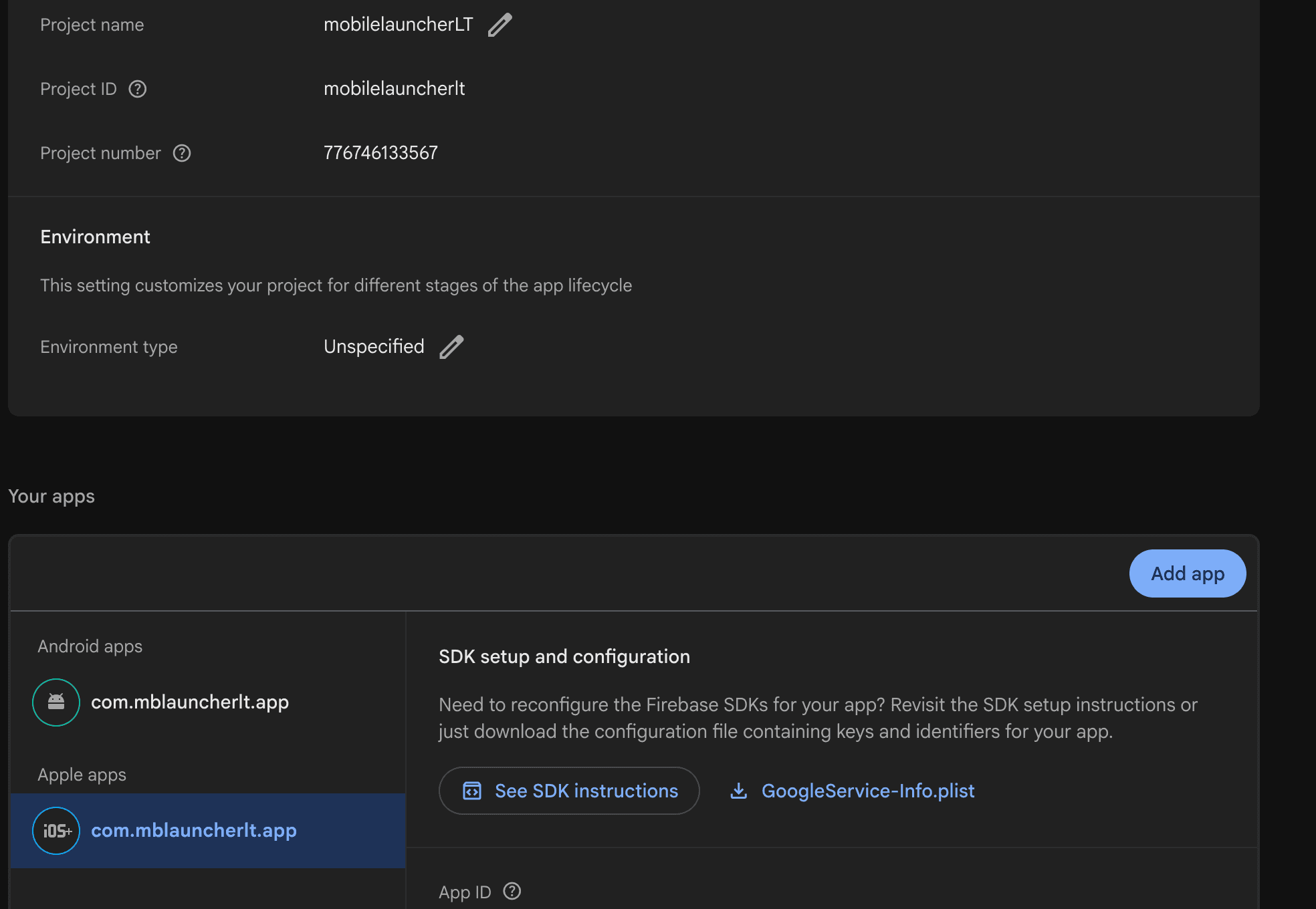
- In your Firebase project dashboard, click the iOS+ button (or Add app → iOS)
- Enter your Apple bundle ID, this must match the
bundleIdentifierin yourapp.json - (Optional) Enter App nickname for display in Firebase Console
- Skip the App Store ID for now (you can add it later)
- Click Register app
Download Config File
- Click Download GoogleService-Info.plist
- Save this file to your project root (same folder as
app.json) - Click Next through the remaining Firebase setup steps, skip the CocoaPods and code steps, as the boilerplate already handles this via Expo config plugins
Update app.json for iOS
Make sure your app.json has the googleServicesFile pointing to the plist file you just downloaded. The boilerplate already has this configured, just verify the path matches where you placed the file (typically ./GoogleService-Info.plist in the project root).
Step 3: Register Android App
Add Android App in Firebase
- In Firebase Console, click Add app → Android
- Enter your Android package name, this must match the
packagein yourapp.json - (Optional) Enter App nickname
- Skip the Debug signing certificate SHA-1 for now (only needed for Google Sign-In)
- Click Register app
Download Config File
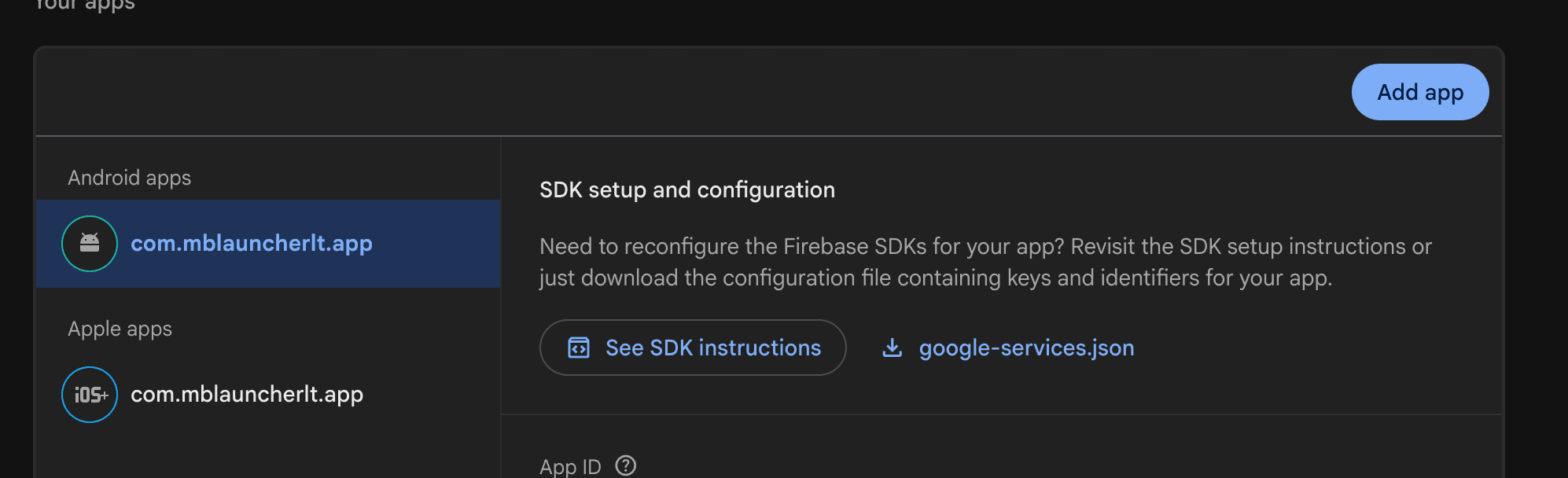
- Click Download google-services.json
- Save this file to your project root (same folder as
app.json) - Click Next through the remaining Firebase setup steps, skip the Gradle steps, as the boilerplate handles this via Expo config plugins
Step 4: Enable Firebase Services
Enable Crashlytics
- In Firebase Console, go to Release & Monitor → Crashlytics
- Click Enable Crashlytics
- Select your app from the dropdown
Enable Cloud Messaging (Push Notifications)
For iOS push notifications, you need to upload your APNs key:
Create APNs Key
- Go to Apple Developer Portal
- Click Keys → + (Create a Key)
- Enter a Key Name (e.g., "FCM APNs Key")
- Check Apple Push Notifications service (APNs)
- Click Continue → Register
- Download the
.p8file (you can only download it once!) - Note your Key ID (shown on the key details page)
Upload to Firebase
- In Firebase Console → Project Settings (gear icon)
- Go to Cloud Messaging tab
- Scroll to Apple app configuration
- Click Upload under APNs Authentication Key
- Upload your
.p8file - Enter your Key ID and Team ID (find Team ID in Apple Developer Portal → Membership)
- Click Upload
Testing
Test explicit Firebase properties
Call the boilerplate's explicit user-property API, then verify that Firebase receives that property. Do not expect ordinary app or screen events in Firebase; verify those in Wire.
Test Crashlytics
The boilerplate includes a crash test utility. Trigger a test crash, close the app completely, and reopen it. Crash reports are sent on the next app launch. Check Firebase Console → Crashlytics (may take a few minutes to appear).
Test Push Notifications
- Get your device's FCM token from the app logs
- In Firebase Console → Cloud Messaging → Send your first message
- Enter notification title and body
- Click Send test message and paste your FCM token
- Click Test
Where the Code Lives
| Feature | Location |
|---|---|
| Config | src/config/firebase.ts |
| Wire product analytics | src/services/wire/, src/services/logging/, and src/analytics/ |
| Explicit Firebase properties | src/analytics/analytics.ts |
| Notifications | src/features/notifications/ |
Common Issues
| Issue | Solution |
|---|---|
| Build fails on iOS | Ensure useFrameworks: "static" is set in expo-build-properties |
No Firebase App '[DEFAULT]' | Run npx expo prebuild --clean and rebuild |
| Config file not found | Verify file paths in app.json match actual file locations |
| App-logger events not showing in Firebase | Expected: verify app-logger events in Wire; Firebase SDK automatic events may still appear when collection is enabled |
| Push notifications not received | Verify APNs key is uploaded in Firebase Console |
| Crashlytics not reporting | Close and reopen app after crash; reports sent on next launch |
| "Expo Go" error | Firebase requires a development build, not Expo Go |