Supabase Integration
Configure Supabase backend for your Expo app
Supabase Integration for Expo
Supabase is already installed and fully integrated into the boilerplate. This guide shows you how to configure your own Supabase project and connect it to the app.
What's Included
- Authentication: Email/Password, Apple, Google, and Magic Links
- Database: PostgreSQL with Row Level Security (RLS)
- Data Sync: Custom offline-first synchronization via RTK and Redux Toolkit
- Storage: File uploads for user avatars and media
Step 1: Create a Supabase Project
Sign Up or Log In
- Go to supabase.com
- Click Start your project or Sign In
- Sign in with GitHub, GitLab, or email
Create New Project
- Click New project in the dashboard
- Select your Organization (or create one if needed)
- Fill in project details:
- Project name: e.g., "My App"
- Database Password: Create a strong password and save it securely
- Region: Choose the closest to your users for better performance
- Click Create new project
- Wait 1-2 minutes for your database to provision
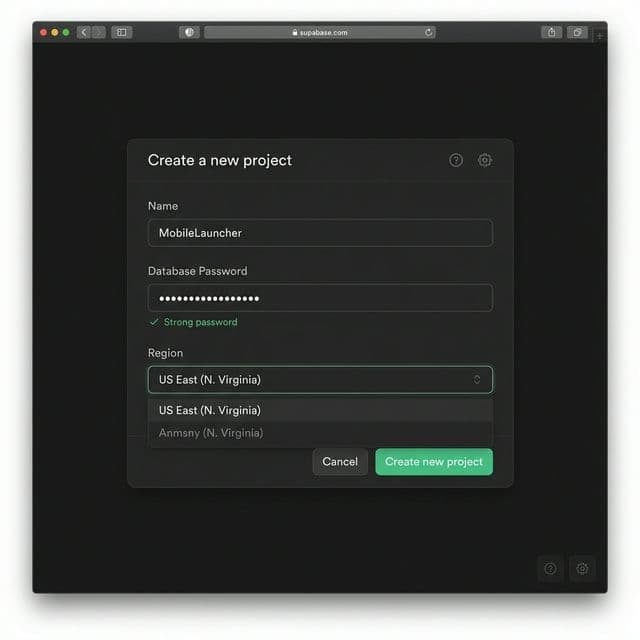
Why this matters: Choosing the right region reduces latency for your users. The database password is only shown once, so save it immediately!
Get Your API Credentials
Once your project is ready:
- Click the Settings icon (gear) in the left sidebar
- Go to API under Project Settings
- Copy these values:
- Project URL:
https://xxxxx.supabase.co - anon public key:
eyJhbGciOiJIUzI1NiIsInR5cCI6IkpXVCJ9...
- Project URL:
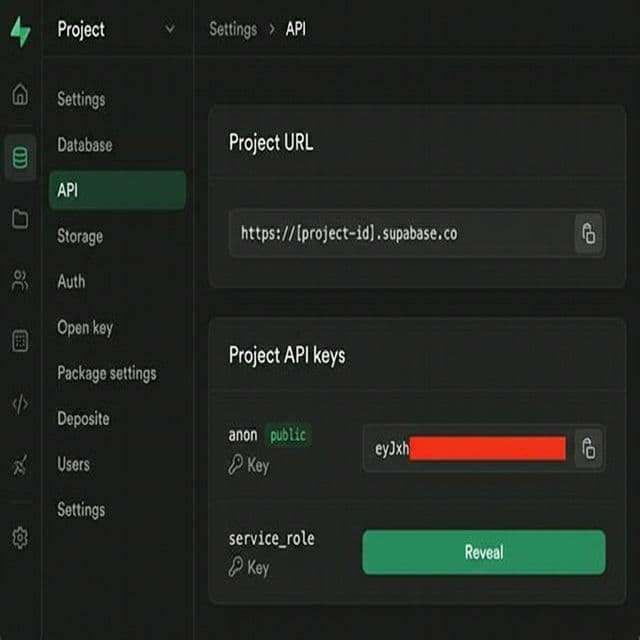
Quick Navigation: You can also access your API keys directly at https://supabase.com/dashboard/project/YOUR_PROJECT_ID/settings/api
Never expose your service_role key in client-side code. Only use the anon key in your Expo app.
Step 2: Configure Environment Variables
Add your Supabase credentials to the .env file in your project root:
# Supabase Configuration
EXPO_PUBLIC_SUPABASE_URL=https://your-project-id.supabase.co
EXPO_PUBLIC_SUPABASE_ANON_KEY=eyJhbGciOiJIUzI1NiIsInR5cCI6IkpXVCJ9.xxxxx
Expo requires environment variables to be prefixed with EXPO_PUBLIC_ to be accessible in your app code.
Step 3: Set Up Authentication
Enable Email Authentication
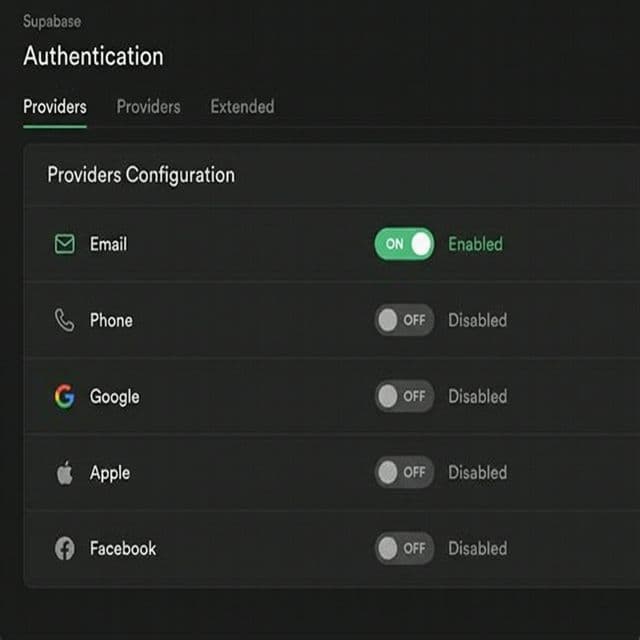
- In Supabase Dashboard, go to Authentication in the left sidebar
- Click Providers tab
- Find Email in the list (enabled by default)
- Configure options:
- Enable email confirmations: Toggle based on your needs
- Minimum password length: Set to 8 or higher
- Click Save
Configure Deep Links for Expo
- Go to Authentication → URL Configuration
- Set your Site URL:
- For Expo development:
exp://localhost:3000or your local IP - For production: Your app's URL scheme (e.g.,
myapp://)
- For Expo development:
- Add Redirect URLs:
exp://localhost:3000exp://192.168.x.x:3000(replace with your local IP)myapp://auth/callback
- Click Save
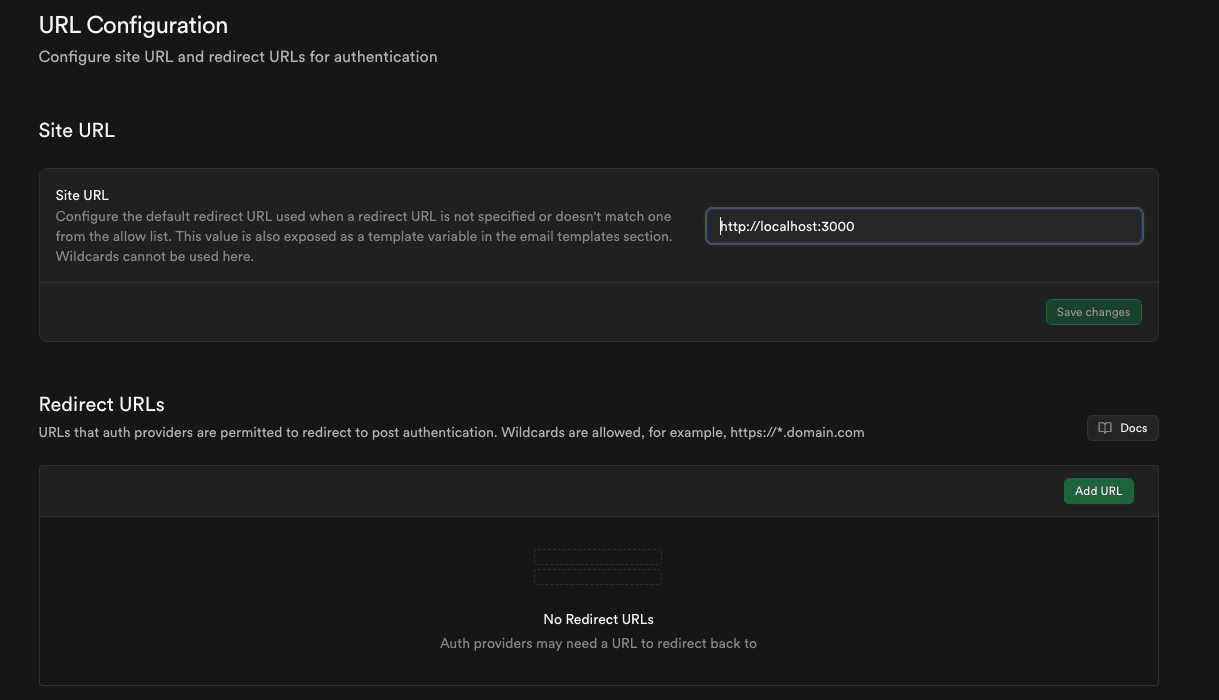
Remember to click Save at the bottom, this is often missed!
Enable Google OAuth (Optional)
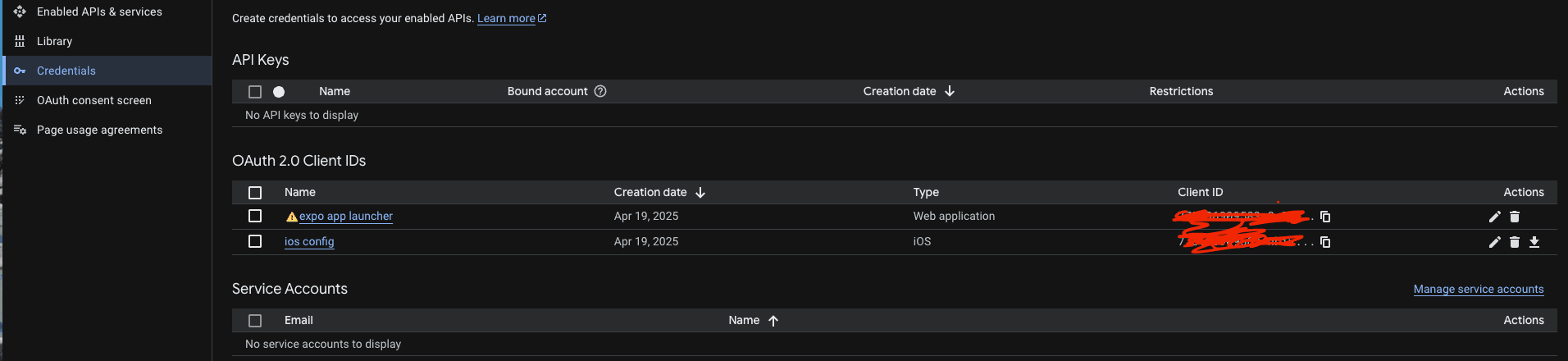
Step A: Create Google OAuth Credentials
- Go to Google Cloud Console
- Create a new project or select existing
- Go to APIs & Services → Credentials
- Click Create Credentials → OAuth client ID
- Select Web application
- Add Authorized redirect URI:
https://your-project-id.supabase.co/auth/v1/callback - Click Create
- Copy the Client ID and Client Secret
Step B: Configure Supabase
- In Supabase, go to Authentication → Providers → Google
- Toggle Enable Sign in with Google
- Paste your Client ID and Client Secret
- Click Save
Step C: Update app.json
The boilerplate already has the Google Sign-In plugin configured. Make sure your app.json has the correct bundleIdentifier (iOS) and package (Android) matching what you registered in Google Cloud Console. Also add your iOS client ID to the CFBundleURLSchemes array.
Enable Apple Sign-In (Optional)
Step A: Configure Apple Developer
- Go to Apple Developer Portal
- Navigate to Certificates, Identifiers & Profiles → Identifiers
- Select your App ID and enable Sign In with Apple
- Create a Services ID for web authentication
- Configure the return URL:
https://your-project-id.supabase.co/auth/v1/callback - Create a Key with Sign In with Apple enabled
- Download the
.p8key file
Step B: Configure Supabase
- In Supabase, go to Authentication → Providers → Apple
- Toggle Enable Sign in with Apple
- Enter your Services ID (Client ID)
- Enter your Secret Key (content of
.p8file) - Enter your Team ID and Key ID
- Click Save
Step C: Update app.json
The boilerplate already has Apple authentication configured. Verify your app.json has usesAppleSignIn: true under the iOS section, and expo-apple-authentication in the plugins array.
Step 4: Set Up Database
Create a Profiles Table
- In Supabase Dashboard, click SQL Editor in the sidebar
- Click New query
- Paste and run the SQL that creates a
profilestable with RLS policies. The boilerplate expects the following structure:id(UUID, referencesauth.users)email(TEXT)full_name(TEXT)avatar_url(TEXT)created_atandupdated_at(timestamps)
- Enable Row Level Security so users can only read and update their own profile
- Create a trigger that auto-creates a profile row when a new user signs up
- Click Run to execute
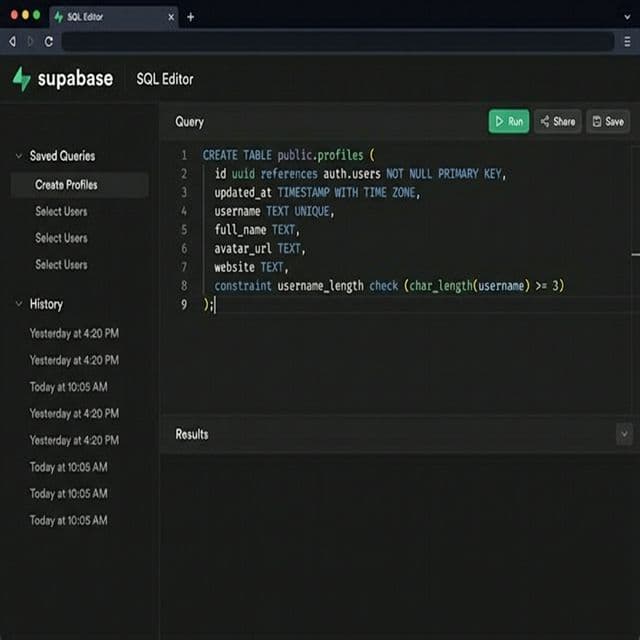
Tip: You can also use the "Table Editor" UI to create tables, but running the SQL snippet is much faster and less error-prone.
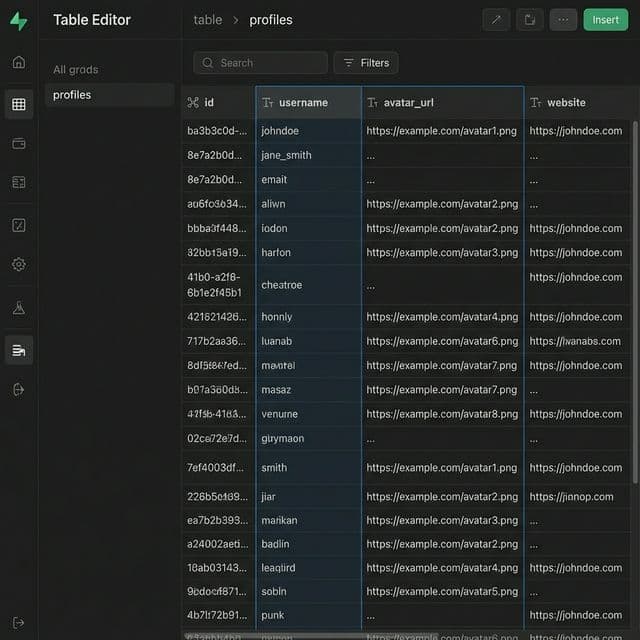
Verify Table Creation
- Go to Table Editor in the sidebar
- You should see the
profilestable - Click on it to view the structure and columns
Step 5: Set Up Storage (Optional)
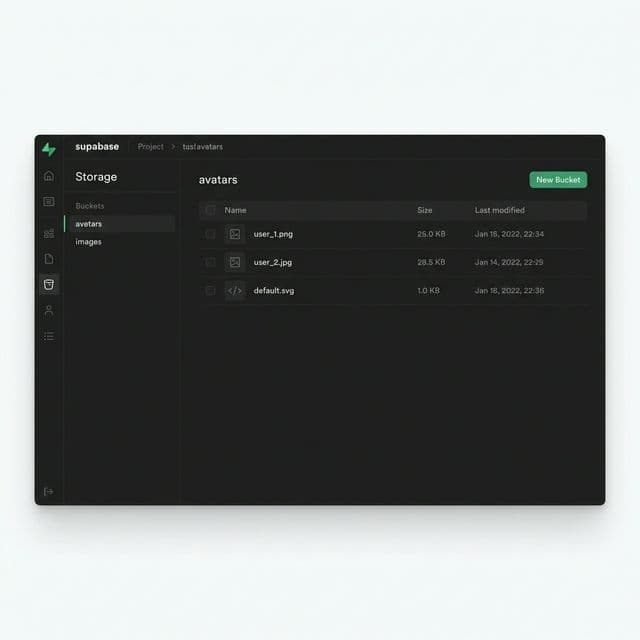
Create a Storage Bucket
- In Supabase Dashboard, go to Storage in the sidebar
- Click New bucket
- Enter bucket details:
- Name:
avatars - Public bucket: Toggle ON for publicly accessible images
- Name:
- Click Create bucket
Configure Storage Policies
- Click on your
avatarsbucket - Go to Policies tab
- Click New Policy → For full customization
- Add these policies:
- Upload policy: Allow authenticated users to upload files to their own folder (using their user ID as the folder name)
- Read policy: Allow public read access so avatars can be displayed
- Delete policy: Allow authenticated users to delete files from their own folder
Common Issues
| Issue | Solution |
|---|---|
| CORS errors | Add your app URL to Authentication → URL Configuration |
| RLS blocking queries | Check policies in Table Editor → select table → Policies |
| Auth session not persisting | Ensure AsyncStorage is imported and configured |
| Type errors | Regenerate types with npx supabase gen types typescript |
| Connection refused | Verify URL and key in .env; restart Expo with --clear flag |
| Deep links not working | Check URL Configuration in Supabase matches your app.json scheme |
Security Best Practices
- Always enable RLS on tables containing user data
- Use the
anonkey in client-side code, neverservice_role - Validate on the server for sensitive operations using Edge Functions
- Limit storage access with proper bucket policies
- Test RLS policies by querying as different authenticated users
Where the Code Lives
| Feature | Location |
|---|---|
| Client | src/lib/supabase.ts |
| Auth Service | src/features/auth/services/auth.service.ts |
| Data Sync | src/services/sync/ (RTK + Redux Toolkit) |
| Types | src/types/supabase.ts |